
McNEESE STATE UNIVERSITY
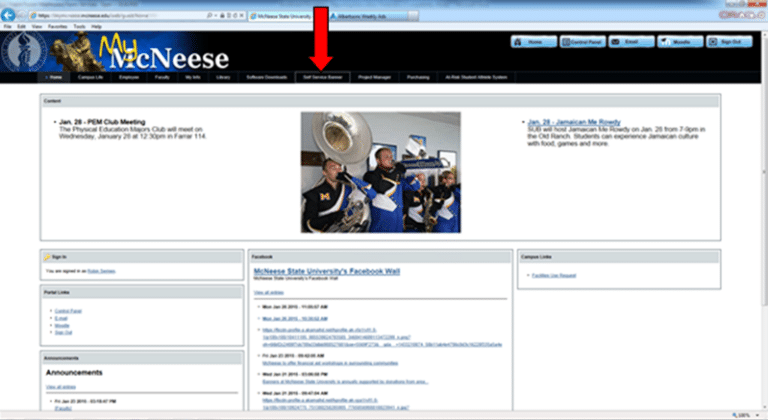
1. Sign in to the MyMcNeese Portal and select the Self Service Banner tab.
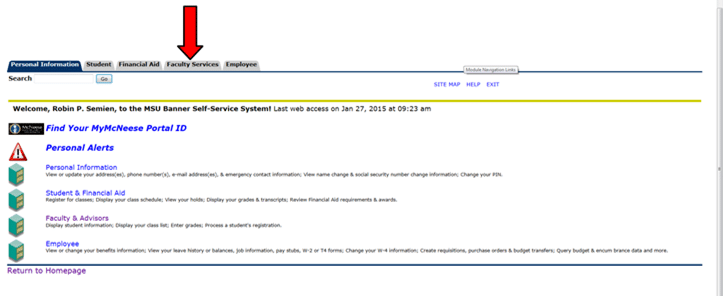
2. Click on the Faculty Services tab.
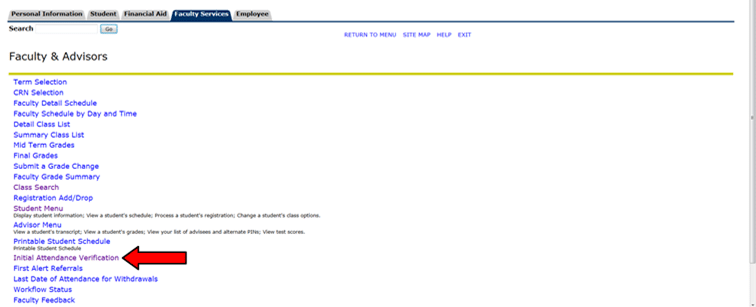
3. Click on Initial Attendance Verification.
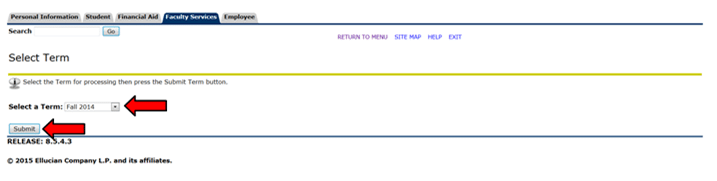
4. Select the current term from the drop-down menu and click the Submit button.
6. Your screen should look similar to the image below. You will see the Student Name and ID (it has been redacted from this screenshot).
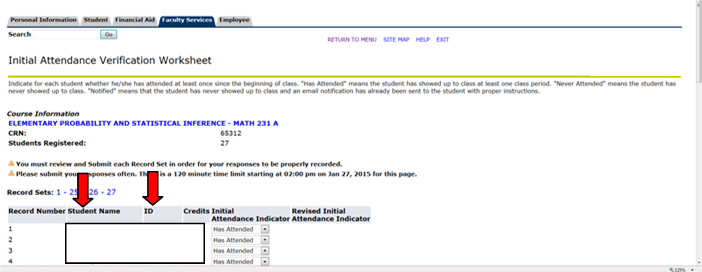
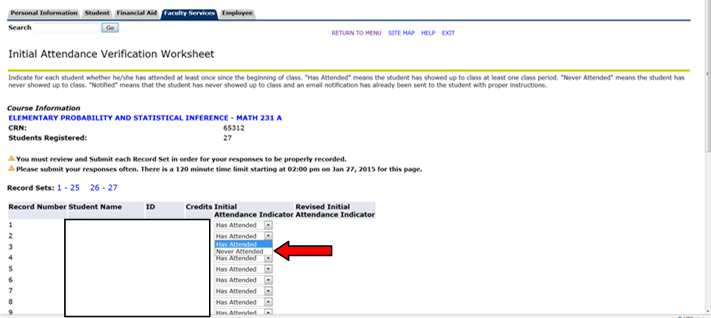
7. You must verify attendance for each student listed on the worksheet. If the student is attending your class, the Initial Attendance Indicator defaults to “Has Attended”, and no further action is required. If the student is not attending your class, you will need to change “Has Attended” to “Never Attended” by clicking on the down arrow and selecting “Never Attended”.
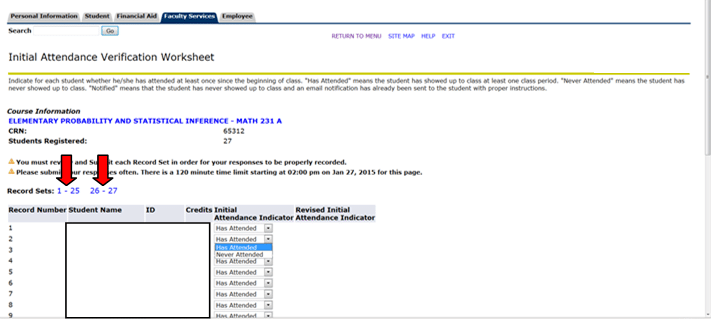
8. The Record Sets will indicate if you have more than one page of students to review. In this example, there are 2 pages of students (1-25 & 26-27). You can toggle between the pages, but you must click Submit on each Record Set for your selections to be saved successfully.
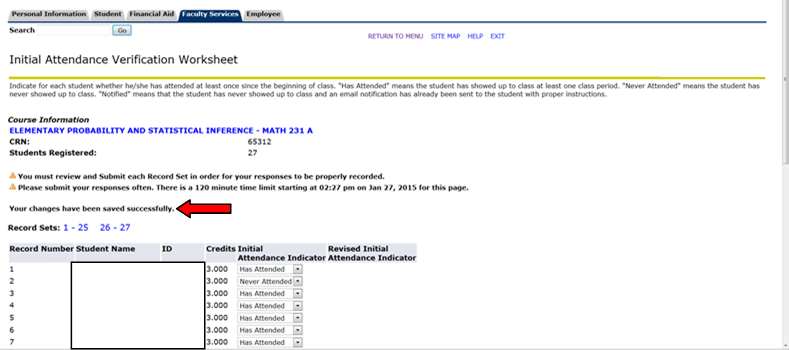
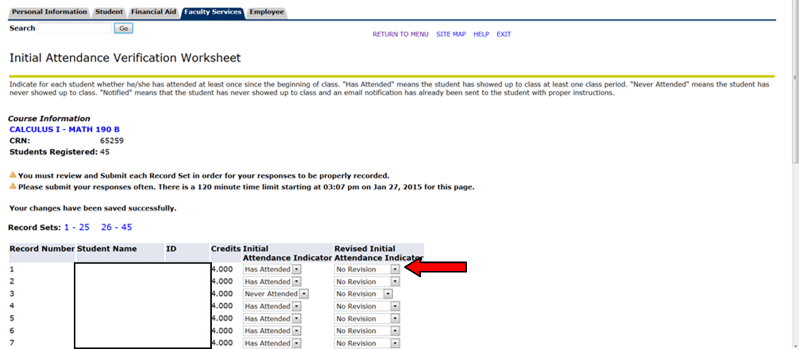
9. Once you click Submit, a message will display notifying you the changes were saved successfully.
10. Once you have submitted your changes, you can return to the Initial Attendance Verification worksheet for any course and make corrections to what was originally reported as long as the Initial Attendance Indicator column has not been updated to “Notified”. This will typically be the case for any change made on the same day the worksheet is originally submitted.
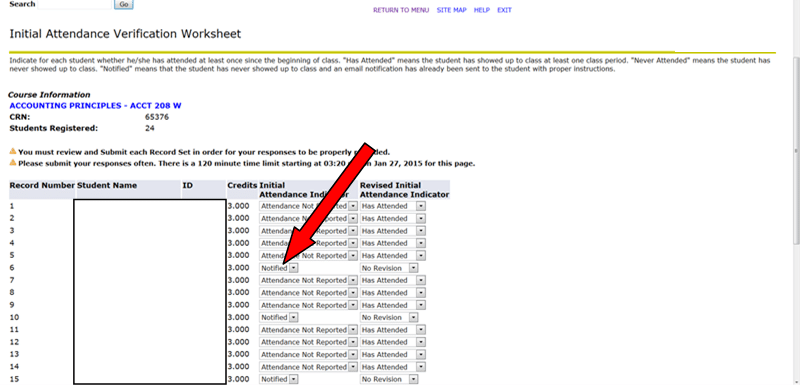
11. If the Initial Attendance Indicator column has been updated to “Notified”, the Initial Attendance Indicator column will be locked, and all changes will need to be made in the second column, Revised Initial Attendance Indicator.
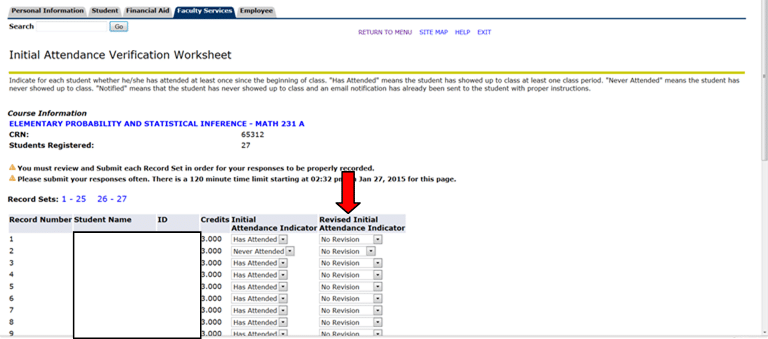
12. If you do not submit the Attendance Verification worksheet by the deadline, you will need to use the Revised Initial Attendance Indicator (second column) to submit your worksheet, as the Initial Attendance Indicator (first column) will have been automatically updated to “Attendance Not Reported”. The Revised Initial Attendance Indicator column will default to “Has Attended”, but the drop-down arrow can be used to change it to “Never Attended”. Make sure you submit your changes, and look for the message confirming they were saved successfully.
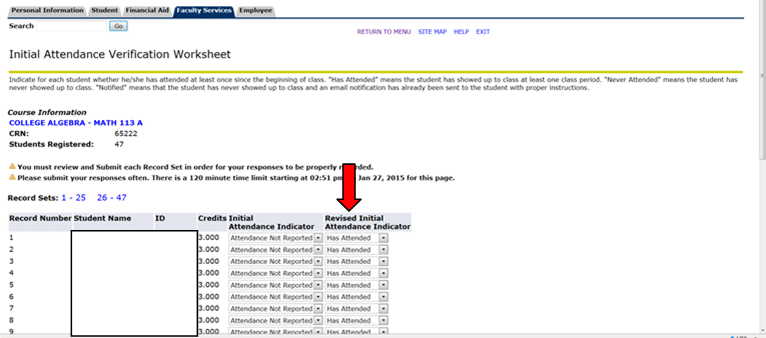
13. Once you click Submit, the Initial Attendance Indicator column will change to whatever was entered in the Revised Initial Attendance Indicator column, and the Revised Initial Attendance Indicator column will now read “No Revision”. Any changes at this point must still be made in the Revised Initial Attendance Indicator column.
14. For students who are not on your roster but who have been attending class, you will need to email rsemien@mcneese.edu with a list of student names and ID numbers and to which CRN they need to be added.
15. Once you click Submit, the names of each student on the class roster will be marked as either Attending or Not Attending. On the date the Attendance Verification worksheets are due, the Registrar’s Office will run a report to identify all students and courses where attendance has not been verified and will begin calling departments for assistance in obtaining completed Initial Attendance Verification worksheets.
Note: If you are an instructor and one of your sections is not appearing on your Banner Self Service drop-down menu, please contact your department for verification that you are listed as the instructor of record on SSASECT in Banner Systems Screens. If further assistance is required after the department has verified the course is set up correctly, please contact Robin Semien in the Registrar’s Office.